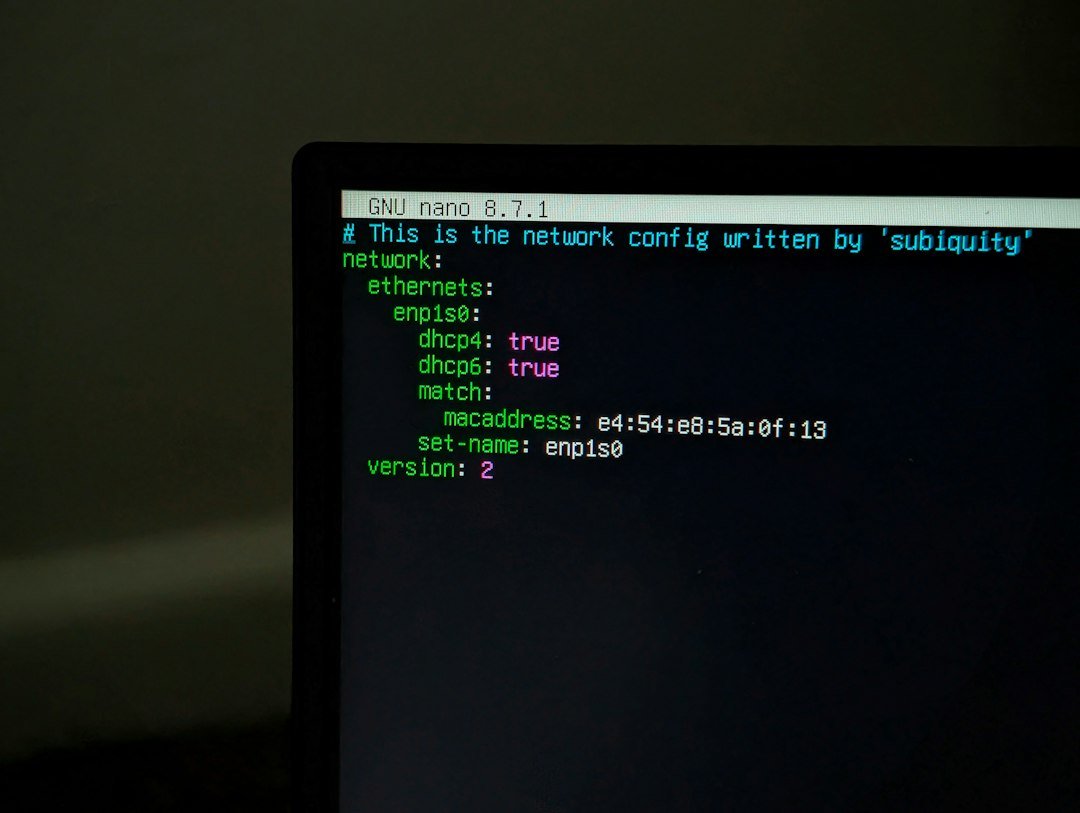
Photo by Cong Long Vu on Unsplash
Managing a Linux server is largely about knowing the right command‑line tools and when to use them.
This guide walks you through the most common commands every system administrator needs in day‑to‑day work, from user management and file handling to networking diagnostics, process control, package maintenance, and security hardening. It assumes you already have SSH access or a console on a running Linux distribution (Ubuntu, CentOS/RHEL, Debian, Fedora, etc.) and that you’re comfortable typing into a terminal.
1. Why the CLI Still Matters
Graphical interfaces like Cockpit make many tasks approachable, but they are thin wrappers over the same system APIs. Knowing how to run those commands directly gives:
- Speed – one keystroke can often replace several mouse clicks.
- Automation – scripts and cron jobs use plain text, not GUIs.
- Debugging – error messages from native tools are usually more detailed than GUI logs.
- Portability – most servers run headless; you’ll need the CLI to manage them remotely.
Below we group commands by category. For each, we give a short description, syntax, and a practical example that illustrates real‑world usage.
2. User and Group Management
| Command | Purpose |
|---|---|
useradd, usermod, userdel |
Create, modify, delete users |
groupadd, groupmod, groupdel |
Manage groups |
passwd |
Set or change passwords |
chown, chmod, chgrp |
Ownership and permissions |
2.1 Adding a New User
sudo useradd -m -s /bin/bash alice
sudo passwd alice          # set password interactively
-mcreates the home directory/home/alice.-ssets the default shell.
If you want to add the user to multiple groups at once:
sudo useradd -m -G sudo,developers alice
2.2 Modifying a User
Change the login shell or move the home directory:
sudo usermod -s /bin/zsh alice          # change shell
sudo usermod -d /new/home/alice -m alice   # move home dir
The -m flag copies existing files to the new location.
2.3 Deleting a User
sudo deluser --remove-home alice
On Debian‑based systems use deluser; on RHEL/CentOS use userdel -r.
3. File System Operations
| Command | Purpose |
|---|---|
ls, find, locate |
List and search files |
cp, mv, rm |
Copy, move, delete |
tar, gzip, bzip2 |
Archive and compress |
df, du |
Disk usage statistics |
3.1 Listing Files
ls -alh /var/log
-a: show hidden files-l: long format-h: human‑readable sizes
To sort by modification time:
ls -lt /var/log
3.2 Searching for a File
find is more powerful than locate, which relies on an index.
sudo find /etc -name 'sshd_config'
If you want to ignore permission errors:
sudo find / -type f -name '*.conf' 2>/dev/null
3.3 Archiving Logs
Rotated logs are often compressed with gzip. To create a tarball of the last seven days’ logs:
tar czf /backup/logs_$(date +%Y%m%d).tar.gz -C /var/log .
-c: create-z: compress with gzip-f: file name
4. Networking Diagnostics
| Command | Purpose |
|---|---|
ip, ifconfig |
Network interfaces |
ss, netstat |
Socket statistics |
ping, traceroute |
Connectivity tests |
nmap |
Port scanning (install first) |
4.1 Inspecting Interfaces
ip addr show eth0
Shows IP, MAC, MTU, and status.
To bring an interface up or down:
sudo ip link set eth0 up
sudo ip link set eth0 down
ifconfig is deprecated but still available on many systems; ip is the modern replacement.
4.2 Checking Open Ports
ss -tuln | grep LISTEN
-t: TCP-u: UDP-l: listening sockets-n: numeric addresses
If you need a more comprehensive scan, install nmap:
sudo apt-get install nmap      # Debian/Ubuntu
sudo yum install nmap          # RHEL/CentOS
Then run:
sudo nmap -sS -O localhost
-sS: stealth SYN scan-O: attempt OS detection
4.3 Tracing a Route
traceroute google.com
On some systems, you may need to install the package first (traceroute or iproute2).
5. Process Management
| Command | Purpose |
|---|---|
ps, top, htop |
View running processes |
kill, pkill, killall |
Terminate processes |
nice, renice |
Adjust priority |
5.1 Listing Processes
ps aux --sort=-%cpu | head -10
Shows the top ten CPU‑hungry processes.
For an interactive view, use top:
sudo top
Or install htop for a nicer interface:
sudo apt-get install htop   # Debian/Ubuntu
sudo yum install htop       # RHEL/CentOS
5.2 Killing a Process
To kill by PID:
kill -15 1234          # SIGTERM (default)
kill -9 1234           # SIGKILL, force terminate
To kill all instances of a command:
pkill -f nginx
-f matches against the full command line.
5.3 Changing Process Priority
sudo renice +10 -p 1234 # lower priority (nice value +10)
Only root can set negative nice values (higher priority).
6. Package Management
| Distribution | Package Manager |
|---|---|
| Debian/Ubuntu | apt |
| RHEL/CentOS/Fedora | yum or dnf |
| Arch Linux | pacman |
6.1 Updating the System
Debian/Ubuntu:
sudo apt update && sudo apt upgrade -y
RHEL/CentOS 8+ (dnf):
sudo dnf update -y
Arch:
sudo pacman -Syu --noconfirm
Always read the output for any prompts or conflicts.
6.2 Installing a Package
sudo apt install htop
For multiple packages:
sudo yum install vim git curl
6.3 Removing Unused Packages (Clean Up)
Debian/Ubuntu:
sudo apt autoremove -y
RHEL/CentOS:
sudo package-cleanup --leaves
7. Systemd Service Control
| Command | Purpose |
|---|---|
systemctl |
Manage services and units |
7.1 Starting, Stopping, Restarting
sudo systemctl start nginx
sudo systemctl stop nginx
sudo systemctl restart nginx
7.2 Enabling at Boot
sudo systemctl enable nginx
7.3 Checking Status and Logs
systemctl status nginx
journalctl -u nginx --since "2024-10-01" --no-pager
journalctl can filter by time, priority, or unit.
8. Security Hardening Basics
| Task | Command |
|---|---|
| View firewall rules | ufw status verbose (Ubuntu) / firewall-cmd --list-all (CentOS) |
| Check for rootkits | rkhunter or chkrootkit |
| Audit user privileges | sudo -l |
8.1 Configuring UFW (Uncomplicated Firewall)
sudo ufw default deny incoming
sudo ufw default allow outgoing
sudo ufw allow ssh
sudo ufw enable
Verify:
sudo ufw status verbose
On RHEL/CentOS, use firewalld:
sudo firewall-cmd --permanent --add-service=ssh
sudo firewall-cmd --reload
8.2 SSH Hardening
Edit /etc/ssh/sshd_config:
PermitRootLogin no
PasswordAuthentication no
AllowUsers alice bob
Then reload:
sudo systemctl restart sshd
9. Log Monitoring and Rotation
Logs are critical for troubleshooting.
9.1 Viewing Logs in Real Time
sudo tail -f /var/log/syslog          # Debian/Ubuntu
sudo journalctl -f -u nginx           # systemd unit
9.2 Configuring Logrotate
Edit /etc/logrotate.d/nginx:
/var/log/nginx/*.log {
    daily
    missingok
    rotate 14
    compress
    delaycompress
    notifempty
}
Test configuration:
sudo logrotate -d /etc/logrotate.conf
10. Automation with Cron
Cron jobs run scheduled tasks.
Create a cron entry for a daily backup:
crontab -e
# Add:
0 2 * * * tar czf /backups/$(date +\%Y\%m\%d)_nginx.tar.gz /var/www/html
crontab -l lists current jobs.
11. Scripting Quick Tasks
A small bash script can bundle multiple commands:
#!/usr/bin/env bash
# backup_and_notify.sh

set -euo pipefail

DATE=$(date +%Y%m%d)
BACKUP="/backups/nginx_$DATE.tar.gz"
SRC="/var/www/html"

tar czf "$BACKUP" "$SRC"
echo "Backup $BACKUP completed." | mail -s "Backup Success" admin@example.com
Make it executable:
chmod +x backup_and_notify.sh
sudo mv backup_and_notify.sh /usr/local/bin/
Schedule it with cron as shown earlier.
12. Performance Tuning Tips
| Area | Command |
|---|---|
| CPU usage | mpstat -P ALL 1 (sysstat) |
| Memory pressure | free -h |
| Disk I/O | iostat -xz 5 (sysstat) |
Install sysstat if missing:
sudo apt-get install sysstat   # Debian/Ubuntu
sudo yum install sysstat       # RHEL/CentOS
Use sar to collect historical data.
13. Troubleshooting Common Issues
| Symptom | Quick Check |
|---|---|
| SSH login fails | systemctl status sshd, /var/log/auth.log |
| Service not starting | journalctl -u <service> |
| Disk full | df -h, du -sh /var/* |
| Network unreachable | ping, traceroute, ip addr show |
When a command returns an error code, consult the manual:
man <command>
Use --help for quick usage:
systemctl --help
14. Resources and Further Reading
- Linux man pages – the definitive source (
man <cmd>). - Official distro documentation – e.g., Ubuntu Server Guide, RHEL System Administration Guide.
- Community sites – Stack Overflow, Unix & Linux Stack Exchange, Reddit r/linuxadmin.
15. Conclusion
Mastering these core commands equips you to manage any Linux server efficiently—whether you’re troubleshooting a single machine or scripting large‑scale deployments. Practice them in a test environment first, then integrate them into your daily workflow. Over time, the command line will become an intuitive extension of your admin toolkit rather than a chore.
Happy administering!
Frequently Asked Questions (FAQ)
1. What is the fastest way to create a new user with sudo privileges?
Use useradd with the -G option to add the user to the sudo group and set a password:
sudo useradd -m -s /bin/bash -G sudo alice
sudo passwd alice
The -m flag creates the home directory, and adding the user to sudo grants administrative rights.
2. How can I quickly find all .conf files on my system while ignoring permission errors?
Run find with redirection of standard error:
sudo find / -type f -name '*.conf' 2>/dev/null
The 2>/dev/null discards “Permission denied” messages, giving you a clean list of configuration files.
3. What command shows all listening sockets on the system?
Use ss, which is the modern replacement for netstat:
ss -tuln | grep LISTEN
The flags display TCP/UDP sockets (-t -u), only listening ones (-l), and numeric addresses (-n).
4. How do I archive recent logs into a compressed tarball with a date‑stamped filename?
Create the tarball in one command:
tar czf /backup/logs_$(date +%Y%m%d).tar.gz -C /var/log .
-c creates, -z compresses with gzip, and -f names the file using the current date.