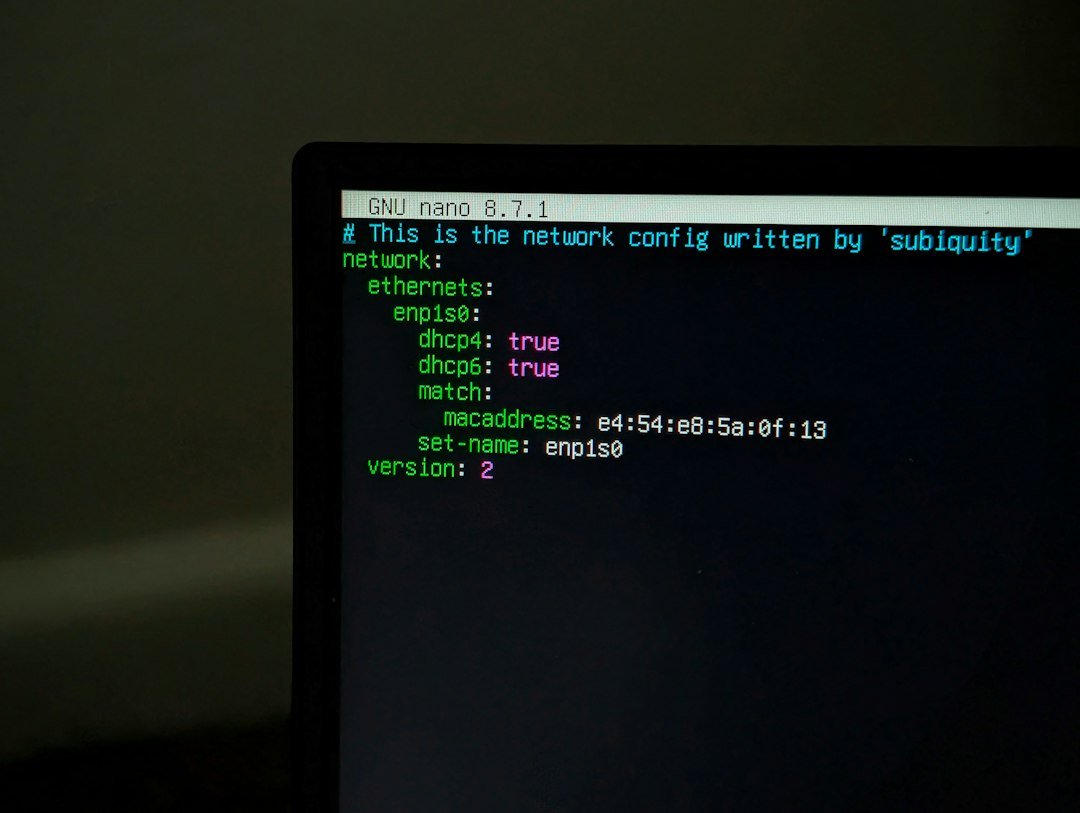
Photo by Cong Long Vu on Unsplash
Introduction
Linux servers are the backbone of modern infrastructure, from web hosting to cloud services and embedded systems. While graphical interfaces like Cockpit make routine tasks feel approachable, a seasoned administrator still relies on the power and precision of the command line. This guide focuses on the most frequently used Linux commands that every admin should master: system status, package management, networking, storage, users, services, and troubleshooting. By learning how to combine these tools, you’ll be able to manage servers efficiently, automate tasks, and quickly diagnose problems.
1. System Information & Monitoring
| Command | What it does |
|---|---|
uname -a |
Kernel version, hostname, architecture |
hostnamectl |
Hostname, OS, kernel, boot time |
top, htop |
Real‑time CPU/memory usage (interactive) |
vmstat 1 |
System performance statistics every second |
free -h |
Memory and swap usage in human‑readable format |
iostat -xz 2 |
Disk I/O stats, extended output |
sar -u 5 3 |
CPU utilization over time (requires sysstat) |
Practical Tips
- Quick health check:
hostnamectl && uptime && free -h. - Long‑term monitoring: Install
sysstat, then usesaroriostatto generate reports for capacity planning. - Alerting: Combine
vmstatoutput with cron and mail scripts to notify when memory usage exceeds a threshold.
2. Package Management
Different distributions use different package managers. Below are the most common ones and their core commands.
| Distribution | Manager | Install | Update | Remove |
|---|---|---|---|---|
| Debian/Ubuntu | apt |
sudo apt install <pkg> |
sudo apt update && sudo apt upgrade |
sudo apt remove <pkg> |
| RHEL/CentOS/Fedora | yum/dnf |
sudo dnf install <pkg> |
sudo dnf update |
sudo dnf remove <pkg> |
| Arch Linux | pacman |
sudo pacman -S <pkg> |
sudo pacman -Sy |
sudo pacman -Rns <pkg> |
Practical Tips
- Pinning versions: Use
/etc/apt/preferences.d/on Debian to hold back a package. - Cleaning cache:
sudo apt clean && sudo apt autoclean. - Security updates only: On RHEL, use
yum update --security.
3. Networking Basics
| Command | Purpose |
|---|---|
ip addr / ifconfig -a |
Show all interfaces and addresses |
ip link set dev <iface> up/down |
Enable/disable interface |
ss -tulwn |
List listening sockets (TCP/UDP) |
netstat -rn |
Routing table |
traceroute <host> |
Path to destination |
ping -c 4 <host> |
Connectivity test |
nmap -sS <IP> |
Port scan (requires nmap) |
Practical Tips
- Persist interface changes: Edit
/etc/network/interfaces(Debian) or create a.networkfile in/etc/systemd/network/. - Firewall check: Use
ss -tulwnto confirm services are exposed as expected. - Troubleshoot latency: Run
ping -i 0.2 <host>for high‑frequency packets.
4. Storage & Filesystem Management
| Command | What it does |
|---|---|
lsblk |
List block devices and mount points |
df -h |
Disk usage per filesystem |
fdisk -l |
Partition table information |
mkfs.ext4 /dev/sdXn |
Create ext4 filesystem |
mount /dev/sdXn /mnt/point |
Mount a device |
blkid |
Show UUIDs and filesystem types |
parted /dev/sdX print |
GPT/MBR details |
Advanced: RAID & LVM
- RAID with mdadm
bash

  sudo mdadm --create /dev/md0 --level=1 --raid-devices=2 /dev/sda1 /dev/sdb1

sudo mkfs.ext4 /dev/md0 - LVM setup
bash

  pvcreate /dev/sdc1

  vgcreate data_vg /dev/sdc1

  lvcreate -n app_lv -l 100%FREE data_vg

  mkfs.xfs /dev/data_vg/app_lv
Practical Tips
- Mount by UUID: Add
UUID=...to/etc/fstabfor resilience against device renaming. - Check integrity: Run
e2fsck -f /dev/sdXnon unmounted partitions.
5. User & Permission Management
| Command | Function |
|---|---|
useradd, usermod |
Create/modify users |
passwd <user> |
Set password |
groupadd, gpasswd |
Manage groups |
chown, chmod |
Ownership and mode changes |
sudo visudo |
Edit sudoers file safely |
Practical Tips
- Least privilege: Add administrators to a dedicated group (
admins) and give them sudo rights via/etc/sudoers.d/admins. - Password policy: Enforce complexity with PAM modules (e.g.,
pam_pwquality.so). - Audit user activity: Use
lastandauditdto track logins.
6. System Services & Process Control
| Command | Purpose |
|---|---|
systemctl status <service> |
Show service state |
systemctl start/stop/restart <service> |
Manage services |
journalctl -u <service> --since "2024-01-01" |
View logs for a unit |
ps auxf |
Process tree |
kill -9 <pid> |
Force kill |
Practical Tips
- Enable on boot:
systemctl enable httpd. - View dependencies:
systemctl list-dependencies nginx. - Rotate logs: Configure
/etc/logrotate.d/for custom log rotation.
7. Backup & Restore Basics
| Tool | Typical Use |
|---|---|
tar |
Archive files (tar -czvf archive.tar.gz /path) |
rsync |
Incremental sync (rsync -avz /src/ user@host:/dest/) |
dd if=/dev/sda of=backup.img bs=64K |
Disk imaging |
Practical Tips
- Automate with cron: Schedule nightly backups.
- Test restores: Periodically restore to a test machine to verify integrity.
- Compression options: Use
pigzfor faster gzip compression.
8. Security Hardening
| Command | Action |
|---|---|
ufw enable && ufw allow ssh (Ubuntu) |
Simple firewall setup |
firewall-cmd --permanent --add-service=http (CentOS) |
Permanent rule addition |
ssh-keygen -t ed25519 -f ~/.ssh/id_ed25519 |
Generate SSH key pair |
chmod 600 ~/.ssh/id_rsa* |
Secure private keys |
sshd_config |
Edit /etc/ssh/sshd_config to disable root login, change port |
Practical Tips
- Fail2Ban: Install and configure to block repeated failed logins.
- SELinux/AppArmor: Ensure enforcing mode (
getenforce,aa-status). - Audit logs: Regularly review
/var/log/auth.logor/var/log/secure.
9. Troubleshooting Workflow
- Identify the symptom – e.g., “service X fails to start”.
- Check status & logs
bash

   systemctl status x.service

journalctl -u x.service --since "10 minutes ago" - Verify dependencies – are required files present? Are permissions correct?
- Reproduce the issue manually – run the command that starts the service in a shell.
- Consult documentation & logs – look for error messages or stack traces.
- Apply fix – edit config, reinstall package, adjust permissions.
- Test – restart the service and monitor.
Common Pitfalls
- Forgetting to reload daemon after editing unit files:
systemctl daemon-reload. - Mis‑matching file paths in scripts; use absolute paths or
$PATH. - Overlooking SELinux/AppArmor denials; check
/var/log/audit/audit.log.
10. Automation & Scripting Basics
| Tool | Use Case |
|---|---|
bash |
Simple shell scripts |
cron |
Scheduled tasks (crontab -e) |
systemd timers |
Precise timing without cron |
Ansible |
Configuration management (uses SSH) |
Example: Daily Disk Usage Report
#!/usr/bin/env bash
DATE=$(date '+%Y-%m-%d')
REPORT="/var/reports/disk-$DATE.txt"

df -h > "$REPORT"
mail -s "Disk report $DATE" admin@example.com < "$REPORT"
Schedule with cron:
0 2 * * * /usr/local/bin/disk_report.sh
Conclusion
A solid grasp of these Linux commands equips you to maintain, secure, and troubleshoot servers confidently. While graphical tools like Cockpit provide a friendly interface for routine tasks, the command line remains indispensable for automation, deep diagnostics, and efficient system administration. Practice these commands in a lab environment, experiment with scripting, and integrate them into your daily workflow—your future self (and your team) will thank you.
Frequently Asked Questions (FAQ)
What command should I use to get a quick overview of my system’s health?
Use hostnamectl && uptime && free -h. This combines hostname, kernel info, current load, and memory usage into one concise snapshot.
How can I keep my package manager from updating a specific package on Debian/Ubuntu?
Create a pinning file in /etc/apt/preferences.d/ that sets the priority of the desired package lower than the default. Example:
echo -e "Package: <pkg>\nPin: version *\nPin-Priority: 100" | sudo tee /etc/apt/preferences.d/<pkg>.pref
Which command lists all listening TCP and UDP sockets on a Linux system?
ss -tulwn displays all listening sockets with protocol, local address, state, and the process owning each socket.
How do I safely create and mount a new ext4 filesystem on a fresh disk?
- Create the filesystem:
sudo mkfs.ext4 /dev/sdXn. - Mount it temporarily:
sudo mount /dev/sdXn /mnt/point. - Persist across reboots by adding an entry to
/etc/fstab, preferably using the device’s UUID (blkidshows it).